The Windows notch for AuggieWatchbird forAuggie
Auggie, the Augment Code CLI, has hooks that can only deny a tool call, never allow one, so Watchbird doesn’t approve for it. What it does: it shows what Auggie is doing, turns its session to “waiting for you” when Auggie asks you a question, and takes you to the terminal.
Auggie
What works
| Session status in the notch | Yes |
|---|---|
| Approve edits & commands | In the terminal (the agent has no hook for it) |
| Questions & plans | Shows that it waits; you answer in the terminal |
| Jump to terminal or editor | Yes, one click |
| Follow-up messages | Yes, delivered when the agent is ready |
| Usage & context | Not shown yet |
| Approve from your phone | Notifications only |
| Autopilot & rules | No (the agent can’t be approved from outside) |
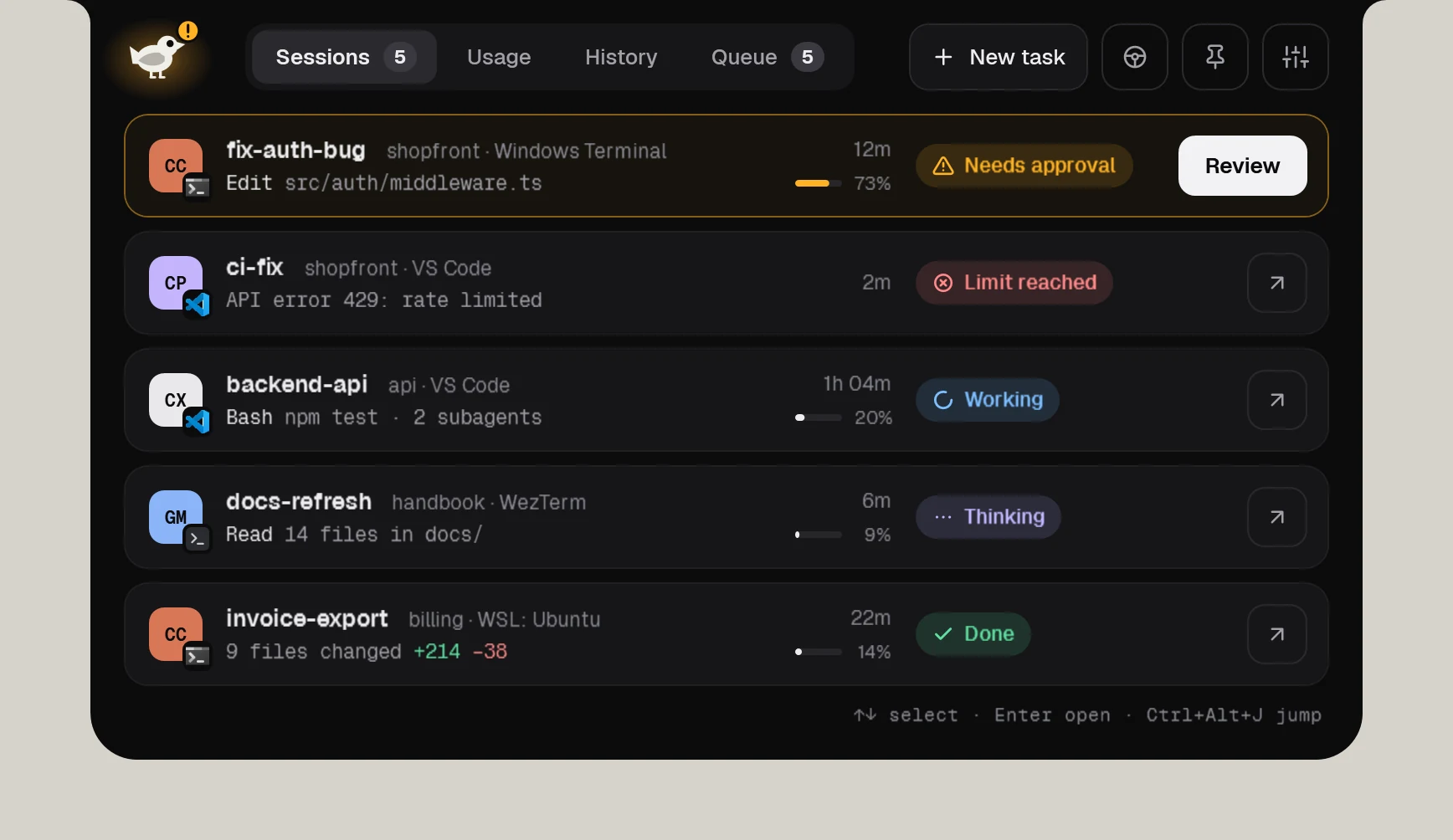
Auggie
How Watchbird connects
Through Auggie’s official hook settings: Watchbird adds its entries to ~/.augment/settings.json — after a backup — and removes them again with one click in Settings → Agents. Your own settings and hooks stay as they are.
Set up in three steps
- 01Get Watchbird from the Microsoft Store — the first 15 days are free.
- 02Start it. The setup finds Auggie on your PC and connects it with one click.
- 03Start a new Auggie session. The notch shows it from the first prompt.
Good to know
- Auggie only runs hook scripts, so Watchbird writes small wrapper scripts to ~/.watchbird/hooks/auggie/ and points its entries in settings.json at them.
- Auggie reads its hooks when it starts — restart running Auggie sessions after connecting. Follow-up messages you send from Watchbird reach Auggie when its current turn ends.
- Augment officially supports Auggie on Windows only in WSL. Watchbird connects Auggie in WSL and also on Windows itself, which Augment doesn’t officially support.
Other agents
The agents are installed separately. Watchbird is an independent product and is not affiliated with or endorsed by their makers; all product names are trademarks of their respective owners.