The Windows notch for ClineWatchbird forCline
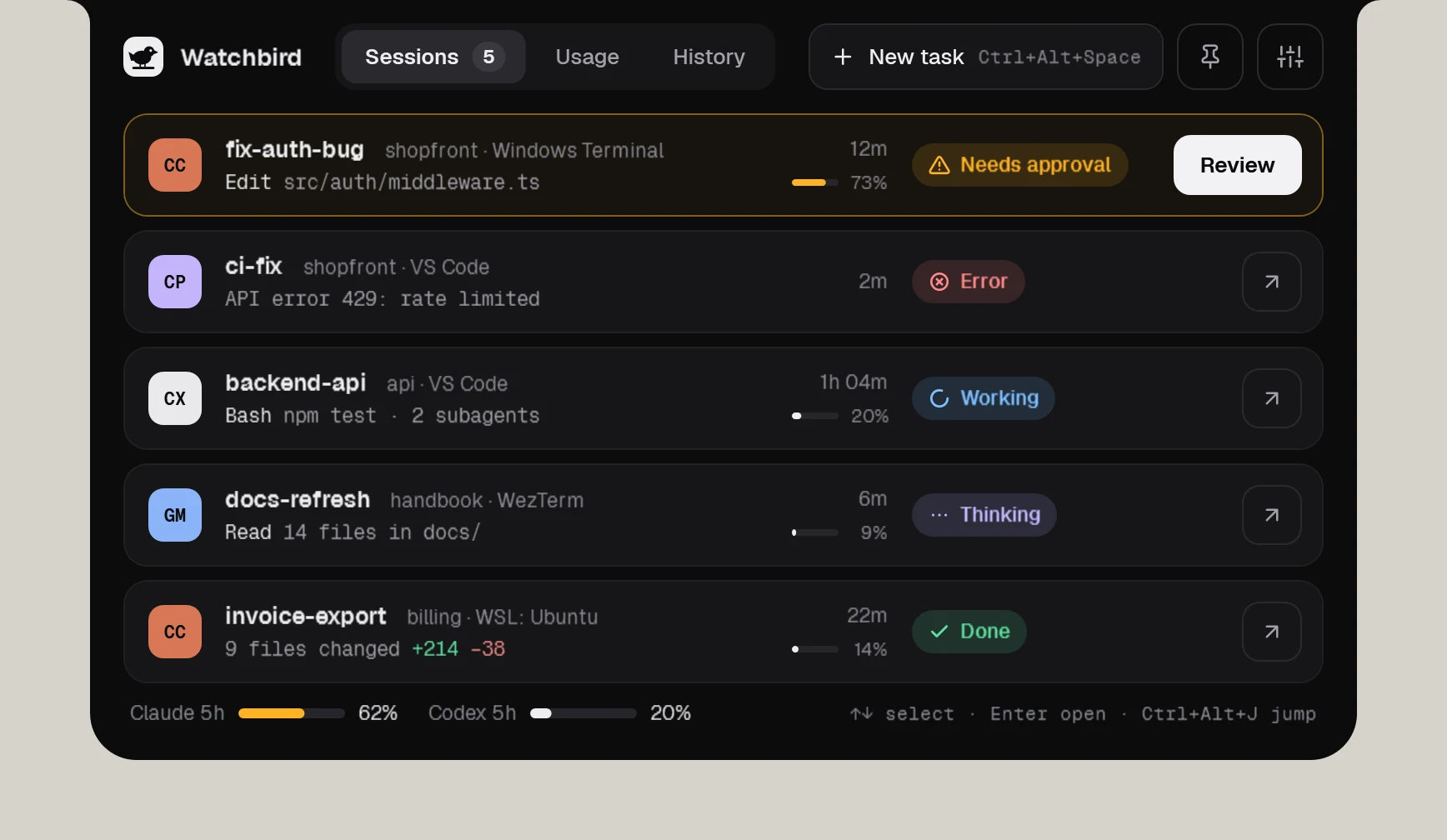
Cline — the VS Code extension and the CLI — has no hook that can grant a permission, so Watchbird never blocks it. It shows every Cline task in the notch and tells you when Cline asks you something.
Cline
What works
| Session status in the notch | Yes |
|---|---|
| Approve edits & commands | In the terminal (the agent has no hook for it) |
| Questions & plans | Shows that it waits; you answer in the terminal |
| Jump to terminal or editor | Yes, one click |
| Follow-up messages | No (the agent can’t continue a finished task) |
| Usage & context | Not shown yet |
Cline
How Watchbird connects
Through Cline’s hook folder Documents\Cline\Hooks: Watchbird adds its own scripts there and removes them again with one click in Settings → Agents.
Set up in three steps
- 01Get Watchbird from the Microsoft Store — the first 15 days are free.
- 02Start it. The setup finds Cline on your PC and connects it with one click.
- 03Start a new Cline session. The notch shows it from the first prompt.
Good to know
- Watchbird adds its own hook scripts to Documents\Cline\Hooks and never touches your own files there.
- Questions show as “waiting for you”; you answer them in Cline. With the Claude Code or Codex providers, Cline sends no tool hooks.
- Windows only (no WSL), and no follow-up messages: Cline can’t continue a finished task.
Other agents
The agents are installed separately. Watchbird is an independent product and is not affiliated with or endorsed by their makers; all product names are trademarks of their respective owners.