The Windows notch for Claude CodeWatchbird forClaude Code
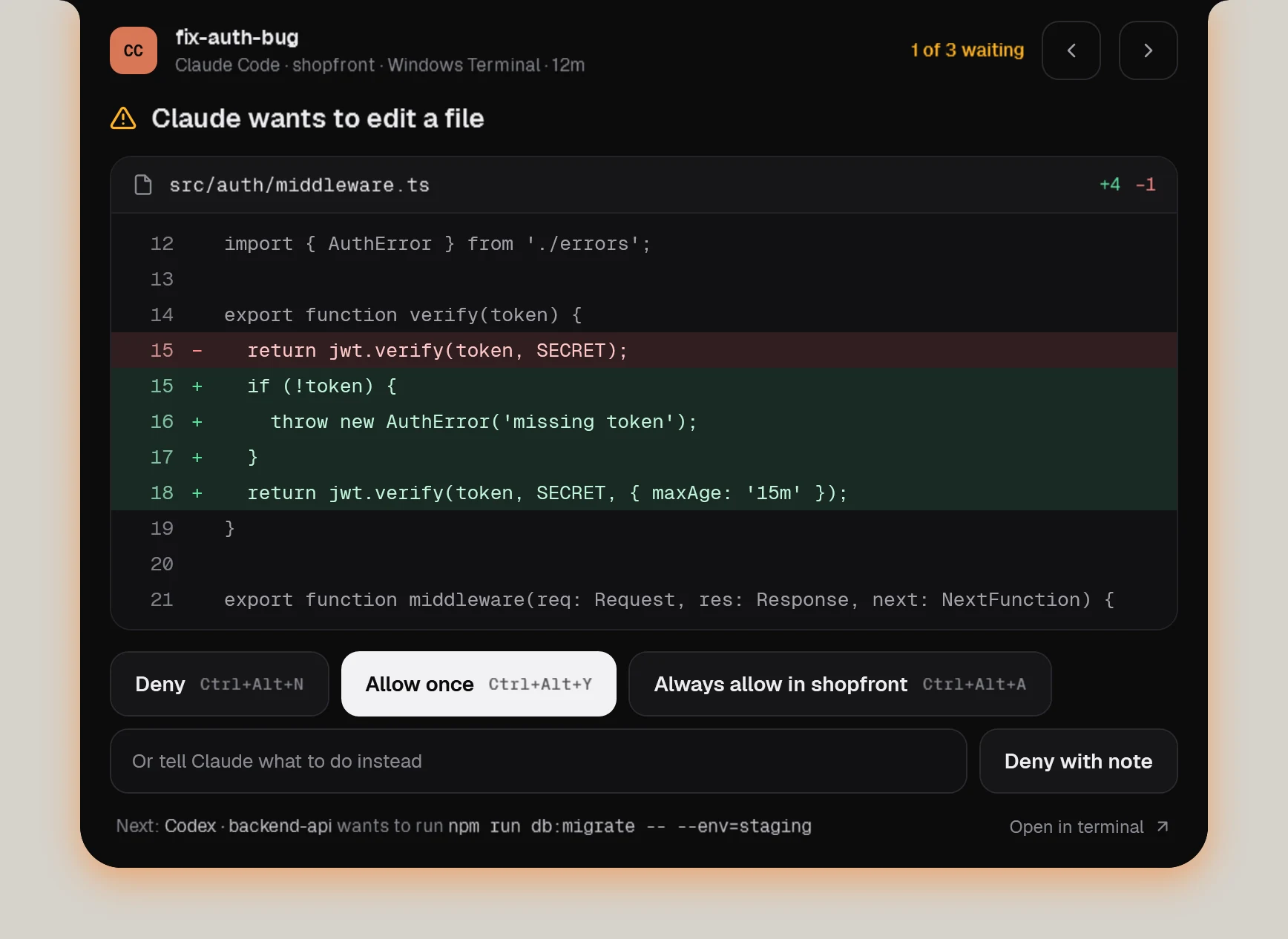
Claude Code asks before it edits files or runs commands, asks you questions and presents plans. Watchbird brings all of it into a notch at the top of your Windows screen — for Claude Code in any terminal and in the Claude desktop app.
Claude Code
What works
| Session status in the notch | Yes |
|---|---|
| Approve edits & commands | Yes, in the notch |
| Questions & plans | Yes, in the notch |
| Jump to terminal or editor | Yes, one click |
| Follow-up messages | Yes, delivered when the agent is ready |
| Usage & context | 5-hour and weekly limits, context, tokens and API value |
Claude Code
How Watchbird connects
Through Claude Code’s official hook settings: Watchbird adds its entries to ~/.claude/settings.json — after a backup — and removes them again with one click in Settings → Agents. Your own settings and hooks stay as they are.
Set up in three steps
- 01Get Watchbird from the Microsoft Store — the first 15 days are free.
- 02Start it. The setup finds Claude Code on your PC and connects it with one click.
- 03Start a new Claude Code session. The notch shows it from the first prompt.
Good to know
- Tested live with Claude Code and the Claude desktop app. In the desktop app, approvals, questions and plans work from the notch; the jump to a window and typed follow-ups need a terminal session.
- “Always allow” writes a regular Claude Code permission rule for the project, so it keeps working even without Watchbird.
- Approve a plan and let Claude auto-accept its edits in one step. If you don’t use a status line of your own, Watchbird adds one with model, context and cost.
Other agents
The agents are installed separately. Watchbird is an independent product and is not affiliated with or endorsed by their makers; all product names are trademarks of their respective owners.