The Windows notch for CursorWatchbird forCursor
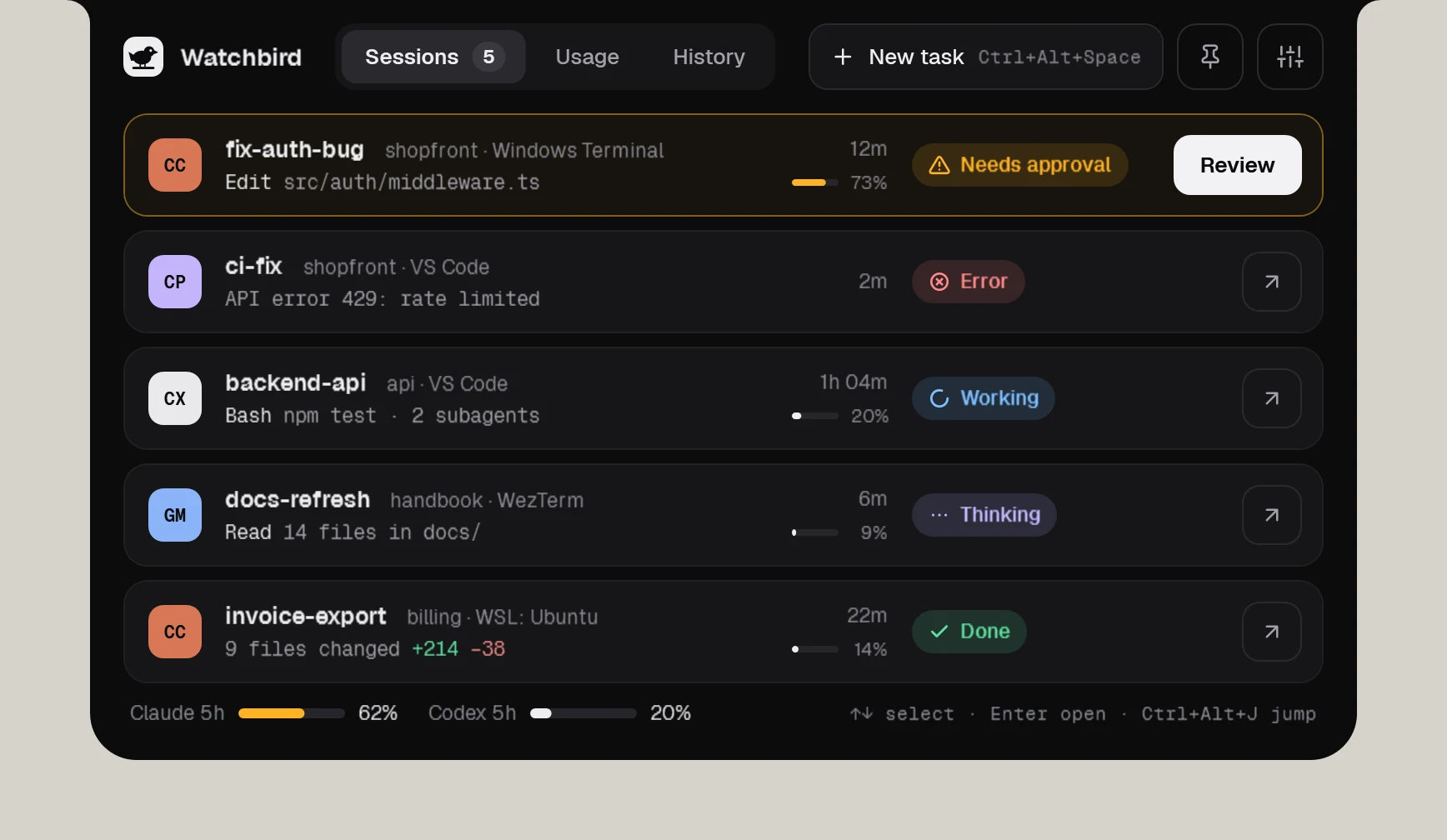
Cursor — the editor and the cursor-agent CLI — runs hooks before shell commands and MCP tools. Watchbird shows every Cursor session in the notch and tells you when it is probably waiting for you.
Cursor
What works
| Session status in the notch | Yes |
|---|---|
| Approve edits & commands | Opt-in gate: Deny in the notch, Allow is confirmed in Cursor |
| Questions & plans | In the terminal (the agent has no hook for it) |
| Jump to terminal or editor | Yes, one click |
| Follow-up messages | Yes, delivered when the agent is ready |
| Usage & context | Context before the last compaction |
Cursor
How Watchbird connects
Through Cursor’s official hook settings: Watchbird adds its entries to ~/.cursor/hooks.json — after a backup — and removes them again with one click in Settings → Agents. Your own settings and hooks stay as they are.
Set up in three steps
- 01Get Watchbird from the Microsoft Store — the first 15 days are free.
- 02Start it. The setup finds Cursor on your PC and connects it with one click.
- 03Start a new Cursor session. The notch shows it from the first prompt.
Good to know
- Optional “Wait for my decision” (Settings → Agents): shell and MCP calls wait for the notch. Deny is final; after Allow, Cursor still shows its own Run button — a limitation of Cursor’s hooks.
- Cursor also runs Claude Code hooks; Watchbird recognises Cursor sessions, so they never appear twice or as Claude.
- Known Cursor issue: when cursor-agent is started from Git Bash, its hooks fail — start it from PowerShell or Windows Terminal.
Other agents
The agents are installed separately. Watchbird is an independent product and is not affiliated with or endorsed by their makers; all product names are trademarks of their respective owners.